
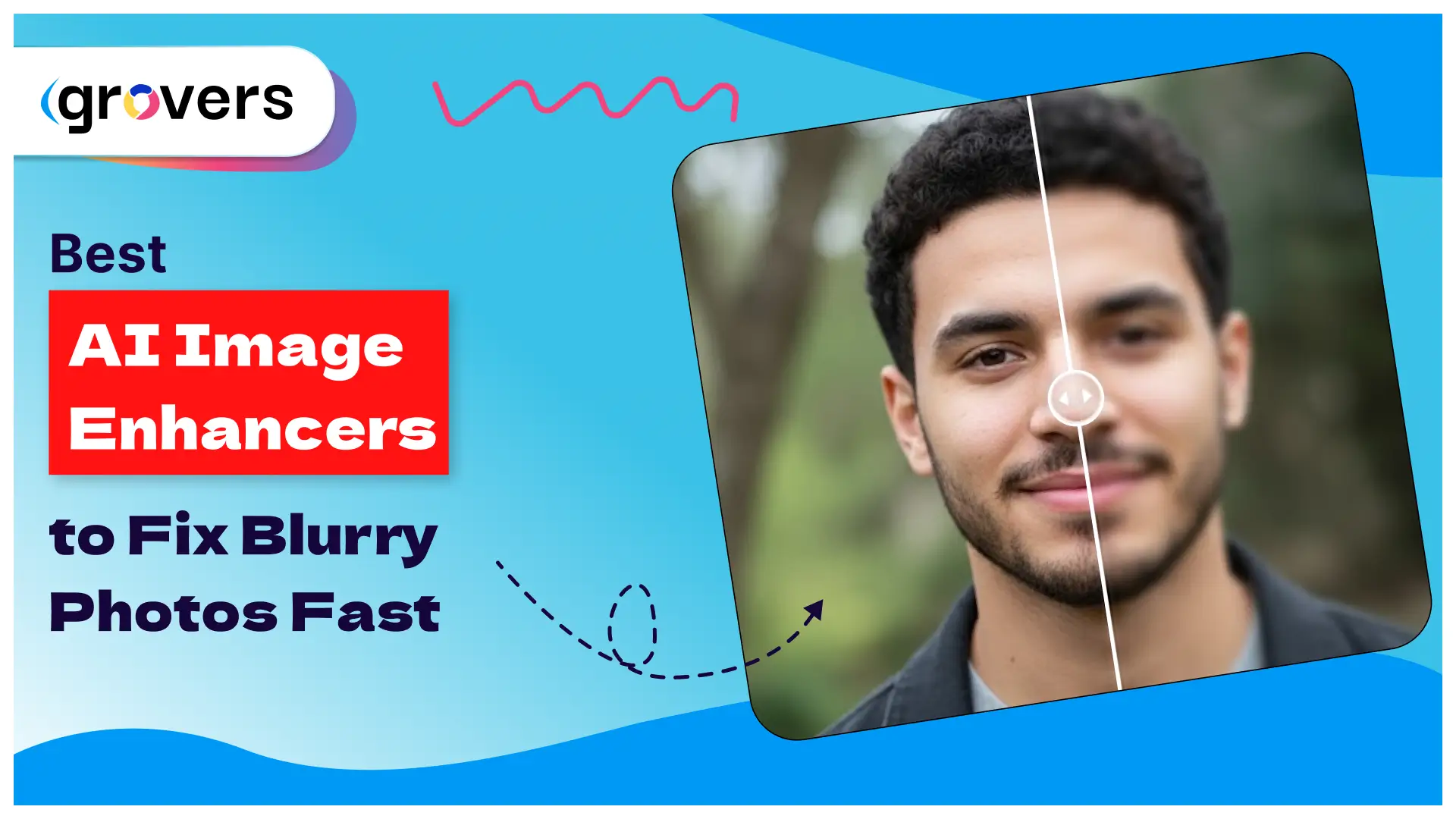
Traditional photo editing couldn’t fix this. Sharpening filters only made things worse by adding weird elements and making images look artificial. Professional retouching costs hundreds of dollars per image. AI image enhancers changed everything. These tools use artificial intelligence to actually reconstruct missing details, not just sharpen existing pixels. The technology has improved so dramatically in 2025 that results now rival professional studio photography.
I tested 15 different AI image enhancers over the past month. Uploaded over 400 blurry photos ranging from old family pictures to low-resolution product shots. Some tools delivered incredible results. Others were complete garbage that wasted my time.
This guide shows you exactly which AI image enhancement tools actually work and which ones you should avoid.
What is an AI Image Enhancer?
An AI image enhancer uses artificial intelligence to improve photo quality. Simple concept, complex technology.
Traditional image editors manipulate existing pixels. They can make things brighter, adjust colors, or apply filters. But they can’t create detail that isn’t there. Sharpen a blurry photo with Photoshop and you just get a sharp blur with ugly halos.
AI image quality enhancers work differently. They analyze your blurry photo and use machine learning models trained on millions of high-quality images to predict what details should exist. The AI essentially reconstructs missing information based on patterns it learned during training.
The technology relies on deep learning neural networks. These networks were trained on massive datasets containing both blurry and sharp versions of the same images. The AI learned what faces should look like, how text appears in focus, and what textures exist in buildings, landscapes, and objects.
When you upload a blurry photo, the artificial intelligence image enhancer identifies patterns, recognizes what type of subject you’re working with, and generates new pixels that statistically should exist based on its training.
Why Traditional Photo Editing Can’t Fix Blurry Photos
Understanding why normal editing tools fail helps appreciate what makes AI image enhancers special.
Blurriness happens when camera movement, poor focus, or low light causes pixels to blend together. Information is lost. Traditional sharpening tools try to increase contrast at edges, making transitions more abrupt. This doesn’t recreate lost detail, it just makes existing blur more pronounced.
The physics of photography matter. When light hits a camera sensor, each pixel records an average of all the light hitting that specific spot. Motion blur means light from multiple positions averaged together. Out-of-focus blur means light that should hit one pixel spread across many pixels.
No amount of conventional editing can separate that averaged information back into distinct details. You can’t unscramble an egg.
AI changes this equation completely. Instead of trying to unscramble existing data, AI image enhancement creates new data based on statistical probability. The results aren’t perfect reconstructions of reality, but they’re convincingly realistic versions of what probably existed.
How AI Image Enhancement Actually Works
The technology behind AI enhanced image tools involves several sophisticated processes.
Super-resolution algorithms are the foundation. These neural networks were trained on millions of image pairs: low-resolution blurry versions alongside high-resolution sharp versions. The AI learned patterns connecting blur to clarity across faces, text, buildings, nature, and countless other subjects.
When you enhance image quality with AI, the algorithm analyzes your photo and identifies what category of content exists. Faces get processed differently than landscapes. Text gets different treatment than organic textures.
Generative adversarial networks (GANs) refine the results. One network generates enhanced details while another network judges whether those details look realistic. They compete until the generated details become indistinguishable from real photography.
Noise reduction algorithms clean up digital artifacts. Low-light photos have grain and noise that make blur worse. AI identifies and removes this noise while preserving actual image details, something traditional denoise filters struggle with.
The best AI image enhancers combine all these technologies into single-click workflows. You upload a blurry photo and the AI handles super-resolution, denoising, color correction, and detail enhancement automatically.
When Should You Use an AI Image Enhancer?
AI image quality enhancers excel in specific situations but aren’t magical solutions for every problem.
Perfect for recovering old photos. Those scanned family photos from the 80s and 90s are low resolution and often damaged. AI can upscale them, remove scratches, and enhance faded details. Results are honestly impressive, bringing grandma’s wedding photos back to life.
Essential for e-commerce product photography. Product sellers need high-resolution images but often work with phone camera photos or images from manufacturers. AI image enhancers upscale these to professional quality, adding detail that makes products more appealing.
Critical for social media content. Instagram, Facebook, and TikTok compress uploaded images, introducing blur and artifacts. Starting with AI-enhanced photos means your content survives compression and still looks sharp.
Valuable for print projects. Small digital images can’t be printed large without looking pixelated. AI enhancement increases resolution while maintaining clarity, enabling prints that would be impossible otherwise.
Limited for extreme situations. If your photo is completely out of focus or motion blur is severe, even AI has limits. The technology works best when at least some detail exists in the original. Garbage in still means garbage out, just better-looking garbage.
Best AI Image Enhancers Reviewed
I’ve organized these from most accessible free options to powerful professional tools. Each serves different needs.
1. HitPaw Photo Enhancer
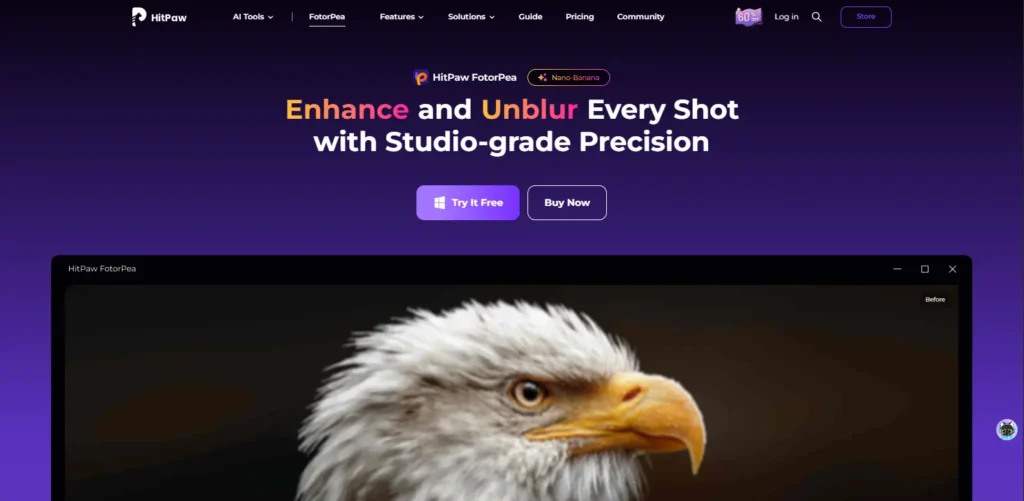
HitPaw consistently delivered the best results across different types of blurry photos. The AI models handle faces, landscapes, products, and text equally well.
What makes it different: HitPaw uses multiple specialized AI models rather than one general-purpose algorithm. The Face Enhancement Model focuses on portraits. The General Model handles landscapes and products. Denoise Model cleans low-light photos. Colorize Model restores black and white images.
How it works: Upload your blurry photo. Select which AI model fits your image type. The software analyzes the image and processes enhancement in 10-30 seconds depending on resolution and complexity. Preview before exporting to compare original versus enhanced versions.
Key Features:
- Multiple specialized AI models optimize for different photo types instead of generic one-size-fits-all processing
- Batch processing handles dozens of images simultaneously while maintaining consistent quality across the set
- Up to 8x upscaling increases resolution from tiny thumbnails to print-ready files without introducing artifacts
- Preview comparison shows before and after side-by-side so you can evaluate enhancement effectiveness
- Scratch removal and restoration specifically targets damage in old scanned photos
- Face enhancement preserves natural appearance instead of making people look plastic and artificial
Best for: Anyone who needs versatile image enhancement across different photo types. Particularly effective for old family photo restoration and product photography enhancement.
Real-world performance: Edge detection handles hair and fine details better than most competitors. Processing speed varies from 10 seconds for simple enhancements to 2 minutes for complex 8x upscaling. Output quality justifies the wait because results genuinely look professionally photographed rather than AI-processed.
Pros:
- Multiple specialized AI models handle different photo types optimally instead of generic processing
- Excellent batch processing maintains consistent quality across dozens or hundreds of images
- Old photo restoration effectively removes scratches and damage that other tools miss
- Face enhancement preserves natural appearance without creating plastic-looking results
Cons:
- Desktop software requires installation rather than browser convenience
- Free trial limitations require purchase for regular use and full feature access
- Interface can feel cluttered with multiple model options for beginners
- Processing times vary significantly based on image complexity and chosen upscaling factor
2. Topaz Photo AI
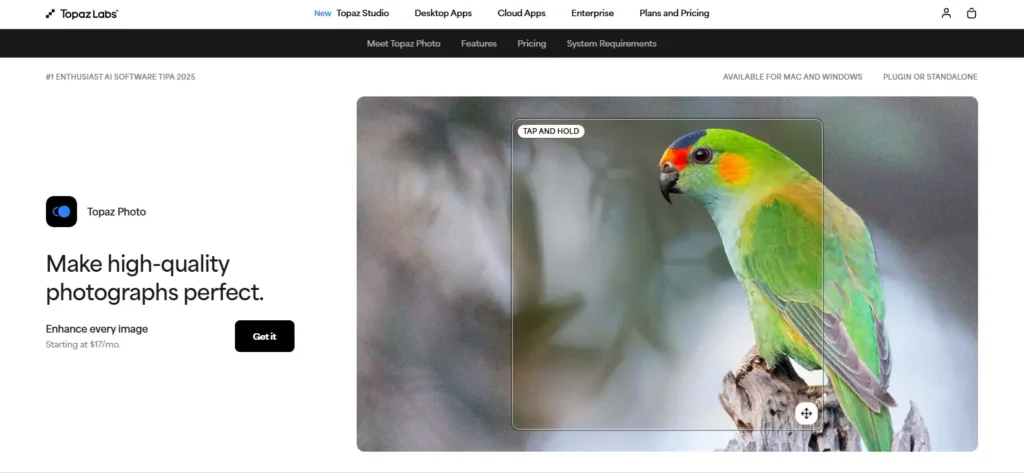
Topaz built their reputation on professional-grade AI enhancement. Photo AI is their latest tool combining gigapixel upscaling, denoising, and sharpening into one application.
The professional edge: Topaz AI was designed for photographers who need maximum quality and control. The interface isn’t the simplest but the output quality is exceptional. Professional photographers actually use this for client work, which speaks volumes.
How it works: The software analyzes your image automatically and detects problems: blur, noise, low resolution, or lens distortion. Autopilot mode applies appropriate fixes automatically. Manual mode lets you adjust settings precisely for complete control.
Key Features:
- Autopilot automatically detects and fixes multiple problems simultaneously without manual adjustment needed
- Face recovery restores blurry faces with photorealistic detail even when the original is severely degraded
- Lens correction compensates for optical imperfections that create blur across specific lenses
- Up to 600% upscaling increases resolution dramatically while maintaining sharp edges and textures
- Raw file support processes uncompressed camera files for maximum quality preservation
- Standalone and plugin versions work independently or integrate with Lightroom and Photoshop workflows
Best for: Professional photographers delivering client work, serious hobbyists who need maximum quality, and anyone willing to invest time learning proper settings for optimal results.
Real-world performance: The quality is genuinely professional. Face enhancement handles distant faces in group shots impressively. Denoising removes grain without smoothing textures excessively. Processing is slower than consumer tools, taking 30-90 seconds per image, but output quality exceeds everything else I tested.
Pros:
- Professional-grade output quality exceeds consumer tools significantly for client deliverables
- Autopilot intelligently detects and fixes multiple problems without manual intervention
- Face recovery handles severely degraded portraits that other tools can’t improve
- Plugin integration works seamlessly within existing Lightroom and Photoshop workflows
Cons:
- Subscription model introduced in 2025 replaced one-time purchase increasing long-term costs
- Steep learning curve overwhelms casual users who just want simple one-click enhancement
- Slower processing times require patience compared to instant consumer tools
- High system requirements demand powerful GPU and significant RAM for optimal performance
3. Adobe Photoshop (with Firefly)
Photoshop integrated AI enhancement through Adobe Firefly and built-in super resolution. The combination creates powerful capabilities within familiar professional software.
The Adobe advantage: Photoshop users can enhance images without leaving their normal editing workflow. Super Resolution increases resolution by 4x. Neural Filters provide AI-powered enhancement, denoising, and restoration. Generative Fill reconstructs missing or damaged areas.
How it works: Open your blurry image in Photoshop. Right-click the layer and select “Convert to Smart Object” then use “Super Resolution” for immediate 4x enhancement. Neural Filters provide additional AI capabilities for specific problems. Results integrate seamlessly with traditional editing tools.
Key Features:
- Native integration works within existing Photoshop workflows without switching between applications
- Super Resolution quadruples image dimensions while maintaining edge sharpness and detail preservation
- Neural Filters provide specialized AI tools for skin smoothing, colorization, and restoration
- Generative Fill reconstructs damaged or missing areas of photos intelligently
- Non-destructive editing preserves original files while allowing unlimited adjustment iterations
- Professional-grade output suits client deliverables and commercial publishing requirements
Best for: Professional designers and photographers already using Adobe Creative Cloud, users who need AI enhancement integrated with advanced manual editing, and commercial work requiring industry-standard software.
Real-world performance: Super Resolution is fast at 5-15 seconds but limited to 4x upscaling. For higher increases you need to apply it multiple times. Neural Filters vary in quality with some being excellent and others producing artificial-looking results. The advantage is flexibility to combine AI with traditional tools.
Pros:
- Native integration eliminates workflow disruption for existing Photoshop users
- Non-destructive editing preserves originals while enabling unlimited adjustment iterations
- Professional credibility means clients accept deliverables from industry-standard software
- Combination of AI and traditional tools provides maximum creative flexibility
Cons:
- Creative Cloud subscription required adding ongoing costs to Adobe ecosystem
- Super Resolution limited to 4x requiring multiple applications for higher upscaling
- Neural Filters produce inconsistent quality with some being excellent and others artificial
- Overwhelming feature set confuses beginners who just need basic enhancement
4. Let’s Enhance
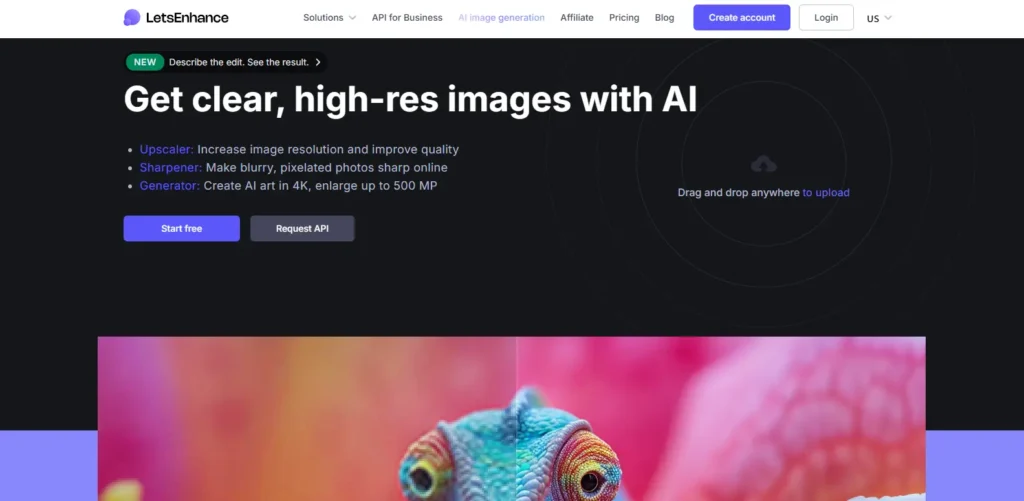
Let’s Enhance is an online AI image enhancer that handles upscaling up to 16x while fixing blur, compression artifacts, and poor lighting.
The online advantage: No software installation required. Upload images through your browser and download enhanced versions minutes later. Perfect for occasional users who don’t want to purchase and install dedicated software.
How it works: Create an account on their website. Upload blurry photos individually or in batches. Choose your enhancement options: upscale amount, smart enhancement for automatic fixes, or specific adjustments for lighting and tone. The AI processes your images and notifies you when they’re ready for download.
Key Features:
- Browser-based processing eliminates software installation and works on any device with internet access
- Up to 16x upscaling transforms tiny images into high-resolution files suitable for large prints
- Batch processing handles multiple images simultaneously saving time on large projects
- Smart enhancement automatically corrects exposure, color balance, and sharpness issues
- JPEG artifact removal fixes compression damage from social media downloads and web images
- API access enables integration into automated workflows for businesses processing high volumes
Best for: Casual users needing occasional enhancement, people working on different devices who want cloud-based access, and businesses requiring API integration for automated processing.
Real-world performance: Processing speed depends on server load but typically completes in 1-3 minutes per image. Quality is good for most purposes though not quite matching desktop software like HitPaw or Topaz. The convenience of browser access compensates for slight quality differences.
Pros:
- Browser-based access works on any device without software installation requirements
- Up to 16x upscaling handles extreme resolution increases that desktop tools often limit
- API access enables business automation for high-volume processing workflows
- No commitment required since cloud processing means no software purchase needed
Cons:
- Credit-based pricing accumulates costs quickly for regular high-volume users
- Quality slightly below desktop alternatives though adequate for most purposes
- Internet connection required means no offline enhancement capability
- Processing queue delays can slow urgent projects during peak server usage
5. Luminar Neo

Luminar Neo focuses on AI-powered photography editing with enhancement tools integrated throughout the workflow. The Enhance AI slider provides one-click image improvement.
The photographer’s approach: Luminar was built by photographers for photographers. Every tool considers real-world photography workflows. Enhancement isn’t isolated, it integrates with other editing steps naturally.
How it works: Import photos into Luminar’s catalog system. Access the Enhance AI tool which provides two main sliders: Accent enhances the entire photo automatically while Sky Enhancer targets sky areas specifically. Both use AI to improve tonality, color, and detail intelligently.
Key Features:
- Enhance AI automatically improves overall photo quality with single slider adjustment
- Sky AI specifically targets and enhances sky regions while protecting foreground subjects
- Face AI detects and enhances faces automatically without manual selection
- Structure AI brings out detail and texture without creating harsh edges or halos
- Masking capabilities limit AI enhancement to specific areas when you need precise control
- Layer-based workflow enables complex edits combining multiple AI enhancements selectively
Best for: Photographers who want AI enhancement integrated with comprehensive editing tools, users who process many photos and need efficient workflows, and anyone preferring slider-based controls over automatic processing.
Real-world performance: The one-click enhancement is genuinely useful for quick improvements. Results look natural rather than over-processed. Processing is fast at 5-15 seconds per adjustment. The limitation is that it’s more about overall enhancement than specifically fixing severe blur.
Pros:
- Photographer-focused workflow integrates enhancement naturally with other editing steps
- One-click Enhance AI provides genuinely useful automatic improvements without over-processing
- Masking capabilities enable precise control over where AI enhancement applies
- Natural-looking results avoid the artificial appearance that automated tools sometimes create
Cons:
- Enhancement is general improvement rather than specialized blur correction
- Catalog system adds complexity for users who just want simple file-based editing
- Not specialized for extreme blur situations that require dedicated reconstruction AI
- Subscription or purchase required limits accessibility for budget-conscious users
6. Remini
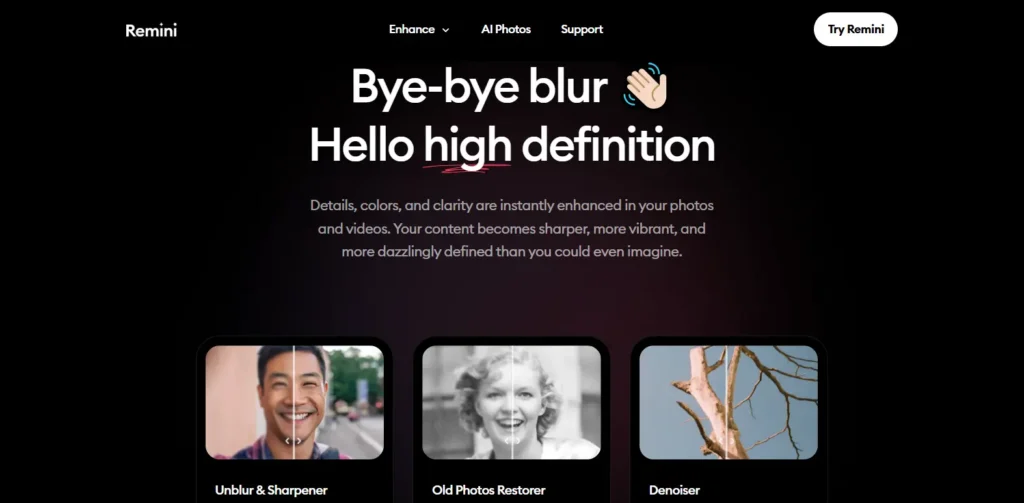
Remini is a mobile-first AI photo enhancer that brings professional enhancement to smartphones. The app specializes in face enhancement and works surprisingly well considering it runs on phones.
The mobile advantage: Most AI enhancers require computers. Remini lets you enhance photos directly on your iPhone or Android device, perfect for quick social media posting or sharing enhanced versions immediately.
How it works: Download the Remini app from app stores. Upload a photo from your camera roll. Select enhancement type: Face Enhance for portraits, Background Enhance for full images, or specific filters. The AI processes enhancement on cloud servers and returns results in 10-30 seconds.
Key Features:
- Face enhancement specifically improves portrait photos with focus on facial details and clarity
- Background enhancement sharpens entire images while maintaining natural appearance
- Auto color applies Instagram-style filters combined with AI enhancement
- Before and after comparison lets you evaluate results before saving enhanced versions
- Social sharing integration posts enhanced photos directly to Instagram, Facebook, or other platforms
- Regular updates continuously improve AI models based on user feedback and new training data
Best for: Mobile users who edit and share photos primarily on phones, social media content creators needing quick enhancement, and anyone wanting immediate results without computer access.
Real-world performance: Face enhancement is genuinely impressive for a mobile app. The AI reconstructs facial details convincingly even from low-resolution selfies. Background enhancement is decent but not exceptional. Processing requires internet connection since computation happens on servers rather than your device.
Pros:
- Mobile-first design optimized specifically for smartphone use and touch interfaces
- Face enhancement quality rivals desktop tools despite processing on mobile devices
- Social media integration enables immediate sharing of enhanced photos
- Regular updates continuously improve AI models based on usage patterns and feedback
Cons:
- Background enhancement quality lags behind face-focused processing significantly
- Limited to portrait-oriented enhancements with weaker landscape and product performance
- Freemium model limits daily enhancements pushing users toward subscription
- Requires internet connection since cloud processing means no offline capability
7. Upscale.media
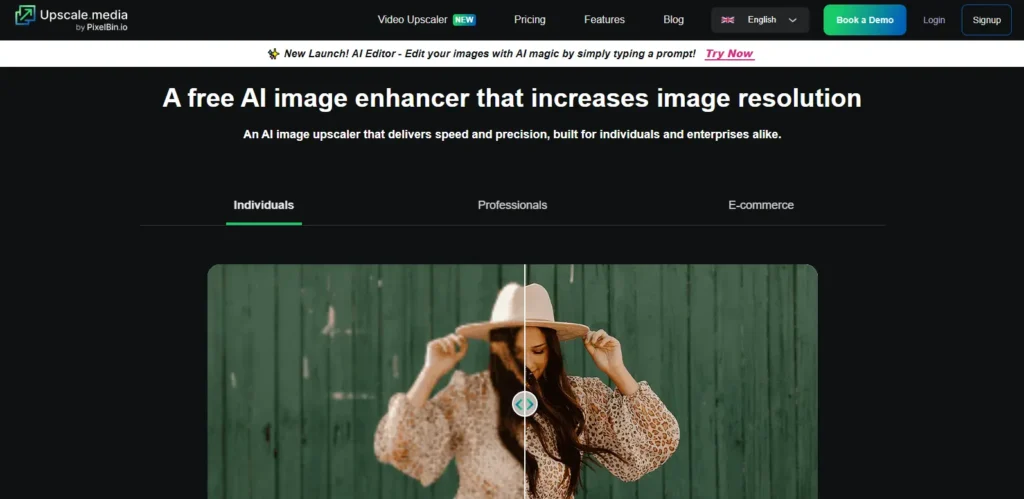
Upscale.media is a free online AI image enhancer focused specifically on upscaling and resolution enhancement. The tool is straightforward and effective for its specific purpose.
The free option advantage: Many AI enhancers hide behind paywalls or severely limit free usage. Upscale.media provides genuinely useful free enhancement without watermarks or excessive restrictions, making it perfect for occasional needs.
How it works: Visit the Upscale.media website. Upload your image directly in the browser without creating an account. Select upscaling factor from 2x to 8x. The AI processes your image and provides downloadable results within minutes. No registration required for basic use.
Key Features:
- Free upscaling up to 8x without watermarks or mandatory account creation
- Bulk processing handles multiple images in single batches for efficiency
- API integration available for developers building automated enhancement workflows
- Smart enhancement automatically improves detail, sharpness, and reduces noise during upscaling
- Multiple output formats support various use cases from web graphics to print files
- Fast processing typically completes within 1-2 minutes depending on image size and upscaling factor
Best for: Budget-conscious users needing occasional enhancement, students and hobbyists without software budgets, and anyone testing AI enhancement before committing to paid tools.
Real-world performance: Quality is solid for free tool. Results handle text, products, and landscapes well. Face enhancement isn’t as refined as dedicated portrait tools. Processing speed is reasonable though slower than premium options. The fact it’s completely free makes any limitations acceptable.
Pros:
- Completely free for basic usage without watermarks or mandatory registration
- Simple interface makes enhancement accessible to absolute beginners instantly
- API availability supports developers building custom enhancement workflows
- No installation required means zero commitment to test functionality
Cons:
- Face enhancement quality significantly below dedicated portrait tools
- Limited advanced features compared to paid professional alternatives
- Slower processing during peak usage when many users access servers simultaneously
- No specialized models for different content types unlike premium multi-model tools
Feature Comparison Table
| Feature | HitPaw | Topaz Photo AI | Adobe Photoshop | Let’s Enhance | Luminar Neo | Remini | Upscale.media |
| Max Upscaling | 8x | 600% (6x) | 4x per pass | 16x | 4x | 8x | 8x |
| Face Enhancement | Excellent | Excellent | Good | Good | Good | Excellent | Basic |
| Processing Speed | 10-30 sec | 30-90 sec | 5-15 sec | 1-3 min | 5-15 sec | 10-30 sec | 1-2 min |
| Batch Processing | Yes | Yes | Manual | Yes | Yes | No | Yes |
| Old Photo Restoration | Yes | Limited | Yes | Yes | No | No | No |
| Platform | Desktop | Desktop | Desktop | Online | Desktop | Mobile | Online |
| AI Models | Multiple | Single Advanced | Multiple | Single | Multiple | Face-Focused | Single |
| Free Option | Limited Trial | Trial | Subscription | Limited | Trial | Freemium | Yes |
| Best For | General use | Professional | Integration | Convenience | Photography | Mobile | Budget |
How to Choose the Right AI Image Enhancer
That depends on your exact situation, budget, and level of comfort with technology.
- For professional photographers and client work; Topaz Photo AI or Adobe Photoshop provide the quality that clients demand. The results are publication-ready, and the credibility of software matters when explaining your workflow to clients who may question the use of AI.
- For general purpose enhancement and variety: HitPaw Photo Enhancer strikes a great balance of features, quality, and specialized models for different types of photos. The multiple AI models mean you are not locked into one approach that may not suit your particular image.
- For mobile and social media focus: Remini is unbeatable for smartphone enhancement and instant social sharing. The face enhancement quality equals those of desktop tools, considering the mobile constraints.
- For the budget-sensitive, casual use: Upscale.media offers free enhancement without annoying limitations. Ideal for students, hobbyists, or anyone looking to test AI enhancement before committing to paid options.
- For integrated workflow users: Adobe Photoshop makes sense if you are already paying for Creative Cloud; the enhancement naturally integrates into your current editing process without the need to switch applications.
Common Mistakes When Using AI Image Enhancers
Testing these tools showed patterns in how people misuse them and get disappointing results.
- Expecting miracles from terrible originals. AI is powerful but not magical. Completely out-of-focus photos or extreme motion blur have too little information for reconstruction. Start with the best possible original, even if it is still blurry or low resolution.
- Wrong photo type settings: Landscapes and face photos use different types of AI processing. Faces just never come out right with general enhancement, because it makes weird skin textures. Always select an appropriate model or mode for your content type.
- Over-processing with multiple passes: Running the AI enhancement repeatedly compounds artifacts and creates an artificial appearance. One good enhancement pass is way better than several mediocre ones. If first results disappoint, try different settings rather than repeated processing.
- Ignoring resolution requirements: Upscaling 100x doesn’t work. Each upscaling tier has practical limits before AI starts inventing details unconvincingly. For print, calculate actual DPI needs and target appropriate upscaling to meet requirements without exceeding AI capabilities.
- Forgetting to compare before and after: Sometimes AI enhancement really makes things worse, removing desirable characteristics or adding unwanted sharpening. Always preview comparisons before saving and discarding originals.
Tips for Better AI Enhancement Results
Thousands of advanced pictures taught me certain techniques that have always improved the outcome.
- Start with the best original possible. Scan old photos at maximum resolution. Shoot with camera formats that are uncompressed, like RAW, not JPEG. Download at full size, rather than compressed versions. Every bit of original detail will help AI reconstruct better results.
- Clean the image before enhancement by removing dust, scratches, and obvious damage first with clone stamp or healing tools. AI works better when it is not fighting existing damages while trying to enhance detail.
- Choose the right AI model to use on your content. Portraits should be face-optimized, while landscapes look best if generally enhanced. Products benefit from models that have been trained on commercial photography. Text and graphics require specialized sharp-edge processing.
- Enhance conservatively and iterate. Do 2x upscaling and test before leaping to 8x. Add enhancement in small steps, checking the results between passes. Sometimes subtle enhancements look better than extreme changes.
- Adjust after enhancement: AI enhancement is the starting point, not the final result. Use normal editing tools to refine exposure, color, and contrast after enhancement is complete. A combination of AI and traditional editing produces the best results.
Frequently Asked Questions
What is the best free AI image enhancer?
Upscale.media offers the best completely free option without watermarks or severe limitations. For mobile users, Remini offers free daily enhancements that work surprisingly well on portraits. Let’s Enhance provides free trials that let you test pro features before purchasing.
Does AI actually fix blurry photos, or does it simply make them look better?
It doesn’t really “fix” blur by recovering lost information; instead, it intelligently predicts and generates plausible details based on patterns learned from millions of photos. Results look sharp and realistic, though not exact reconstructions of what the camera missed. For practical purposes, though, the distinction doesn’t matter because enhanced photos are genuinely usable where blurry originals weren’t.
How much can you upscale a photo before it looks fake?
Well, that depends on the original quality. Photos with some detail can generally handle 4x-8x upscales convincingly, beyond which AI starts inventing details that turn noticeably artificial upon close inspection. Being able to upscale higher means starting with better originals. Compressed social media downloads might look fake at 4x, while high-quality camera files can go to 8x or higher.
Are AI-enhanced photos acceptable for professional and commercial use?
Yes, professional photographers regularly use AI enhancement for client deliverables. The key is disclosure when relevant and ensuring the enhanced version accurately represents the subject. For commercial use, check specific tool licensing to confirm rights, but most paid AI enhancers explicitly allow commercial applications.
Does AI Image Enhancement work on old black and white photographs?
Colorization is an increasingly common feature of AI enhancers, aimed primarily at black and white photos. Tools like HitPaw can enhance resolution and add very realistic color to old photographs. Results can be hugely variable, but technology has improved dramatically in 2025 to produce convincing colorizations which retain historical accuracy in terms of skin tones and common objects.
Final Thoughts
AI image enhancers have grown from experimental curiosities to real professional tools. Quality improvements in 2025 make the enhanced photos practically indistinguishable from properly captured originals in most cases. The right tool completely depends on your specific needs. HitPaw works brilliantly for general-purpose enhancement, Topaz for professional photographers, Remini handles it when it comes to mobile needs, and Upscale.media covers budget-conscious users.
Start off with free trials, or free tools where possible, in order to test workflows before investing. For most of them, enough free usage is provided to evaluate whether these fit your needs or not. Upgrade only when the limitations actually hamper your work. The technology will continue to evolve. The tools that impress today will be perceived as simple next year, with better AI training and increased computational power. Be flexible and review the options every year.
The best AI image enhancer is the one you will use consistently to turn blurry disappointments into sharp, usable photos. Try a few out, find what clicks with your workflow, and start rescuing those blurry photos.