

Research from the Design Management Institute shows 73% of professional designers rely on color picker tools to streamline their workflows. These tools don’t just save time. They ensure accuracy, maintain consistency, and speed up your entire design process.
Your website’s color scheme shapes first impressions faster than any other element. Some 42% of consumers say color directly influences their purchase decisions. Websites using strategic colors see conversion rates jump by 34%.
This guide reveals the 5 best color picker tools for web design in 2026. You’ll discover which tool fits your workflow, how to use each one efficiently, and exactly how to integrate them into your daily design process.
What Color Picker Tools Actually Do
Color picker tools identify and capture exact colors from your screen. You point at any color. The tool gives you the precise code in whatever format you need.
These tools work differently from color scheme generators. Generators create new color combinations from scratch. Pickers capture existing colors from websites, images, or applications already on your screen.
Think of color pickers as digital eyedroppers. Traditional eyedroppers extract paint from a palette. Digital eyedroppers extract color values from pixels.
Professional color picker tools provide multiple features beyond basic color capture. They magnify pixels for precision and save color history for quick access. They convert between color formats instantly and check accessibility standards automatically.
The format conversion matters tremendously for web design. Your favorite designer uses HSL values and developer needs hex codes. Your print vendor requires RGB. Color picker tools handle all conversions instantly.
The Color Formats Every Web Designer Needs
Web designers work with three primary color formats. Understanding each one helps you pick the right tool.
- HEX codes dominate web design. These six-character codes starting with a hashtag (#FF5733) represent colors in HTML and CSS. All 16,777,216 possible web colors can be expressed as hex codes. Web developers prefer hex codes because they’re compact and universally supported.
- RGB values use three numbers from 0 to 255 representing red, green, and blue channels. RGB (255, 87, 51) produces the same orange as #FF5733. Designers working with digital screens and photography often prefer RGB because it matches how monitors create colors.
- HSL values describe colors using hue, saturation, and lightness percentages. HSL (9, 100%, 60%) creates that same orange. Designers love HSL because adjusting individual values creates predictable variations. You want a darker version? Drop the lightness percentage.
Modern color picker tools export all three formats simultaneously. You capture one color and get hex, RGB, and HSL instantly.
Why Professional Designers Use Color Picker Tools Daily
Speed transforms design workflows dramatically. Manual color matching takes minutes per color. Color pickers work in seconds. You multiply those seconds across dozens of colors per project and save hours weekly.
Accuracy prevents costly mistakes. Your client’s brand blue must match exactly across their website, app, and social media. Guessing creates inconsistencies. Picking ensures precision down to the pixel.
The statistics prove the value. Some 58% of design teams now use color accessibility testing tools built into modern color pickers. High-contrast color schemes improve readability for 87% of users with visual impairments.
Websites implementing proper color contrast see measurable improvements. Users stay longer. Bounce rates drop. Conversions increase. Color pickers with built-in accessibility checkers make compliance simple.
The Top 5 Color Picker Tools for Web Design
1. ColorZilla: The Browser Extension Champion
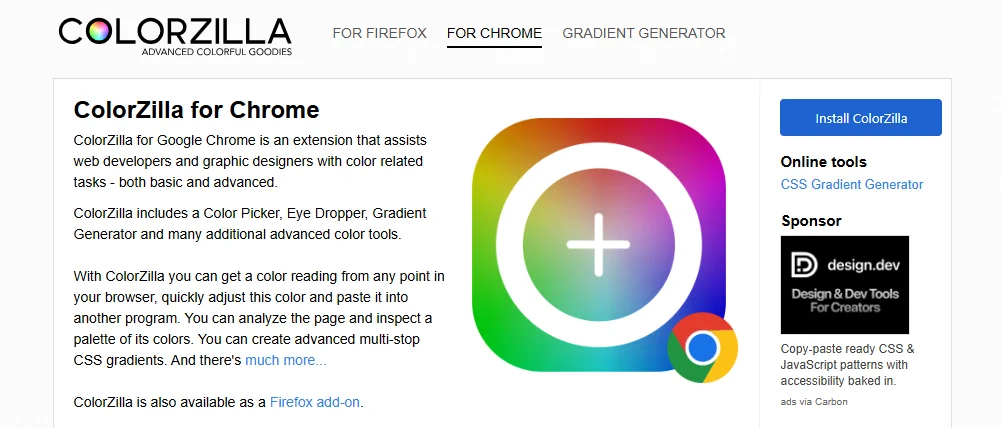
ColorZilla combines multiple color tools into one comprehensive browser extension. The tool works in both Chrome and Firefox.
The eyedropper tool picks colors from any element on any webpage. You hover over a button. Click once. ColorZilla captures the exact hex code. The color gets saved to your history automatically.
The advanced color picker gives you fine control. You can adjust hue, saturation, and brightness with sliders. The tool shows you the color in hex, RGB, and HSL simultaneously.
ColorZilla includes a webpage color analyzer. You click one button. The tool extracts every color used on the entire page. You see the complete color scheme without manual picking.
The gradient generator creates CSS gradients visually. You pick start and end colors. ColorZilla generates the complete CSS code ready to paste into your stylesheet.
The palette viewer organizes captured colors into collections. You can name palettes, export them, and share them with team members.
Best for: Browser-based workflow, comprehensive features, team collaboration
Platforms: Chrome, Firefox
Cost: Free
2. ColorSlurp: The Mac Precision Tool
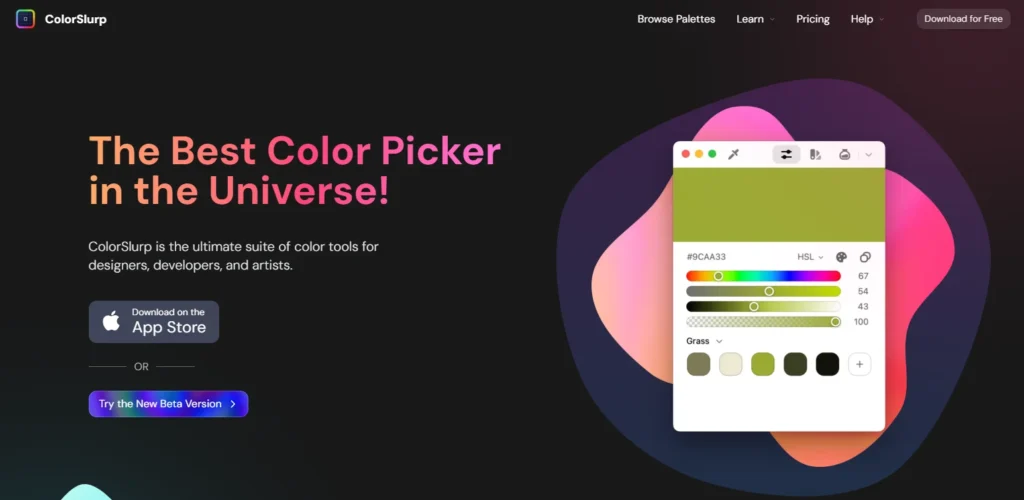
ColorSlurp delivers professional-grade color picking for Mac and iOS. The tool earned over 10,000 five-star ratings on the App Store.
The precision magnifier lets you pick any color on your screen with pixel-perfect accuracy. You move the magnifier with your cursor. Arrow keys provide even finer control. Long-press slows movement for targeting individual pixels.
One-click copying works with any color format. You customize which formats you need. The tool pastes directly into design applications without extra steps.
The palette creation system helps organize projects. You create named palettes for each client. Colors sync across all your devices through iCloud.
ColorSlurp includes a built-in contrast checker. The tool tests colors against WCAG standards instantly. You see which combinations pass accessibility requirements.
The camera feature on iOS creates palettes from photos. You point your iPhone at anything. ColorSlurp extracts the dominant colors automatically.
Best for: Mac users, mobile color capture, accessibility testing
Platforms: Mac, iOS
Cost: Free with Pro upgrade available
3. HTML Color Codes: The Web Designer’s Resource
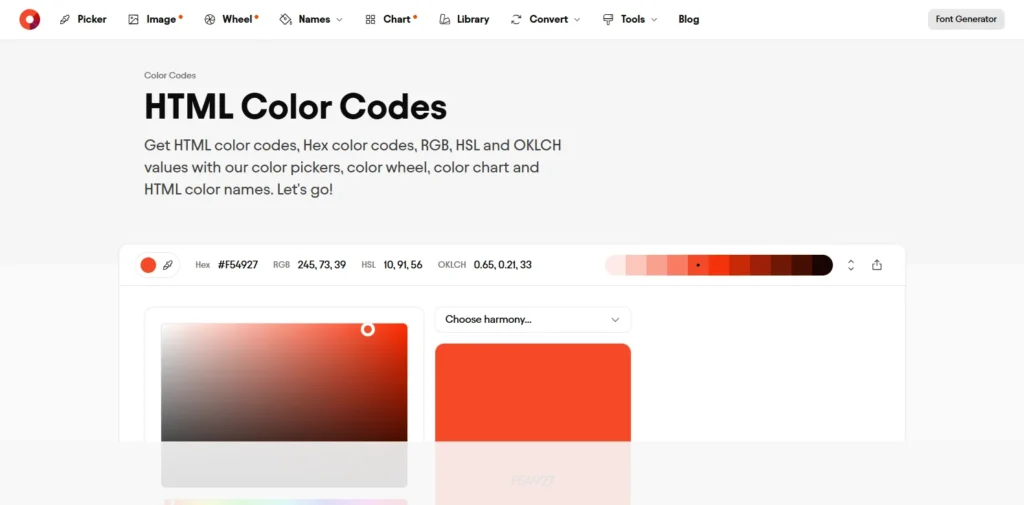
HTML Color Codes provides a complete suite of free color tools specifically designed for web development.
The main color picker offers an intuitive interface for selecting any color. You click and drag through the color space. The tool displays hex, RGB, HSL, HSV, and OKLCH codes simultaneously.
The website color extraction tool analyzes entire websites. You enter any URL. The tool reads the HTML and CSS files automatically. You get every hex code used on that site.
The color charts give you instant access to common palettes. Flat design colors, Material Design schemes, and web-safe palettes are all browsable. Each color shows its name and code.
The export options work perfectly for web development. You copy colors as HEX codes, HTML code, CSS styles, or SCSS variables. The formats paste directly into your codebase.
The educational resources explain color theory clearly. The site includes tutorials on color rules, complementary schemes, and contrast ratios.
Best for: Web developers, CSS code export, and learning color theory
Platforms: Web-based
Cost: Free
4. ColorPick Eyedropper: The Chrome Specialist

ColorPick Eyedropper focuses exclusively on doing one thing perfectly. The Chrome extension captures colors faster than any competitor.
The eyedropper activates with one click. You hover over any element on any webpage. The extension displays the hex code in real-time as you move your cursor.
The zoom feature ensures accuracy. The tool magnifies the area around your cursor. You see individual pixels clearly before picking.
The color history saves every color you pick automatically. You can scroll back through dozens of recently captured colors. Click any saved color to copy its code again.
The extension works anywhere in Chrome. You can pick colors from websites, web applications, images, and videos playing in your browser.
The simplicity makes ColorPick Eyedropper extremely fast. No menus to navigate. No settings to configure. Just point, click, and copy.
Best for: Quick color capture, Chrome users, minimal interface
Platforms: Chrome
Cost: Free
5. ColorSnapper: The Mac Designer’s Favorite
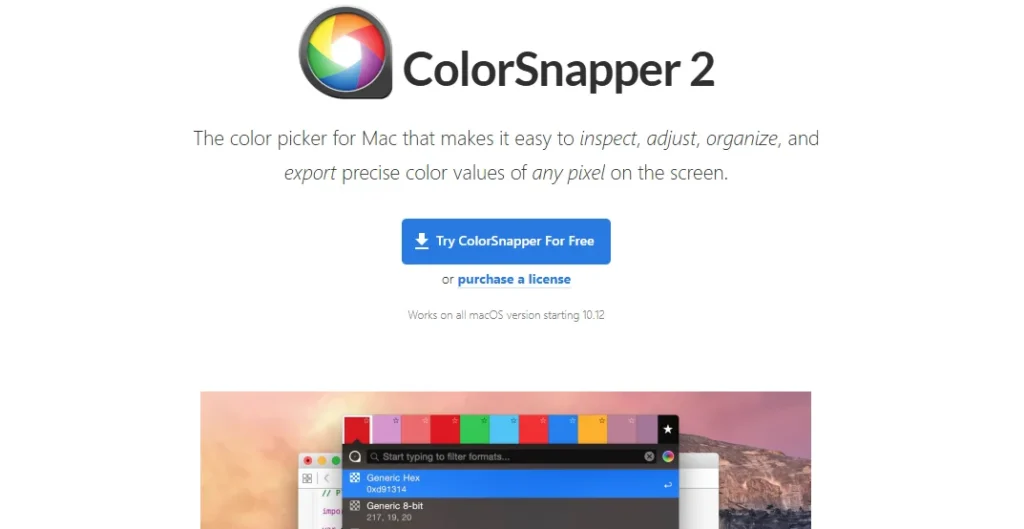
ColorSnapper became the most popular color picker among professional Mac designers. The app integrates seamlessly into macOS workflows.
The magnifying color picker works on anything visible on your screen. Websites, applications, images, and PDF documents. The magnifier gives you pinpoint accuracy.
The color panel stores all picked colors automatically. You click on any stored color. ColorSnapper copies it to your clipboard instantly in your preferred format.
The organizational system keeps projects separate. You create different collections for different clients. Colors stay organized without manual sorting.
ColorSnapper supports every major color format. HEX, RGB, HSL, HSV, NSColor, UIColor, and more. Developers working with Swift or Objective-C get native iOS and macOS color codes.
The keyboard shortcuts accelerate your workflow. You activate the picker without touching your mouse. Experienced users pick dozens of colors per hour.
Best for: Mac professionals, keyboard shortcuts, development integration
Platforms: Mac
Cost: Paid
How to Use Color Picker Tools Like a Professional
Start With Competitor Research
Your competitors spent money on professional designers. Their color schemes work. Learn from their investments.
Visit the top 10 websites in your industry. Use your color picker tool to capture their primary colors, accent colors, and button colors. Save each color scheme in a separate palette.
Look for patterns. Most industries converge on similar color temperatures. Finance uses cool blues. Food uses warm reds and oranges. Tech favors bold primary colors.
The patterns reveal what customers expect in your industry. Meeting expectations builds instant trust. Breaking them requires strong justification.
Build Your Color Library Systematically
Professional designers maintain organized color libraries. Every project adds colors to the collection.
Create separate palettes for each client or project. Name them clearly. Date them. Include notes about where each color came from.
Tag colors by purpose. Mark, which colors work for backgrounds? Which ones work for text? Which ones pass accessibility standards? Future projects benefit from your past organization.
Export your palettes regularly. Back them up outside your color picker tool. Apps crash. Extensions break. Backups prevent lost work.
Test Colors in Context Before Committing
Colors look different in isolation versus application. Your perfect blue might fail on actual layouts.
Pick your colors. Then mock up three real page elements. Try the colors on a header, button, and text block. The context reveals problems immediately.
Check mobile displays. Colors display differently on phones versus monitors. Test your picks on actual devices before finalizing designs.
Verify printed versions if your design goes to print. Screen colors and print colors never match perfectly. Order test prints early to avoid surprises.
Use Accessibility Checkers on Every Color Pair
Text needs sufficient contrast against backgrounds. Low contrast frustrates users and violates legal requirements.
Normal text requires a 4.5:1 contrast ratio minimum. Large text needs 3:1. UI elements like buttons need 3:1 against adjacent colors.
Tools like ColorSlurp and HTML Color Codes include contrast checkers. Use them on every text-background combination. Fix failures before launching.
Remember that 8% of men and 0.5% of women experience color blindness. Test your schemes with color blindness simulators. Ensure your design communicates without relying solely on color.
Document Your Choices for Team Consistency
Design teams need shared color standards. Documentation prevents drift and maintains consistency.
Export your final palette with complete details. Include hex codes, RGB values, and HSL percentages. Add visual swatches for quick reference.
Create a simple brand guide showing where each color appears. Specify background colors, text colors, accent colors, and button colors.
Share the palette file in formats your entire team uses. Developers need hex codes. Print designers need RGB or CMYK. Mobile developers need native color objects.
Common Color Picker Tool Mistakes That Waste Time
Picking Colors Without Considering Context
Colors interact with their surroundings. Beautiful colors picked in isolation often fail in actual designs. That gorgeous purple you picked? It might clash with your brand orange. The elegant gray might disappear against your background. Context determines success.
Always pick colors while viewing your actual design layout. Use the color picker on mockups, not on blank canvases.
Ignoring Color Format Requirements
Your developer asks for hex codes. You send RGB values. Now they need to convert manually. You just slowed down the entire team. Learn which formats your team needs. Configure your color picker to display those formats prominently. Copy the right format the first time.
Different platforms require different formats. Web uses hex. iOS uses UIColor. Android uses a different RGB notation. Know your targets before picking.
Forgetting to Save Color History
You spent 20 minutes finding the perfect colors. You forgot to save them. Your color picker history got cleared. Now you start over completely. Save important colors immediately. Create named palettes during the picking process, not after.
Export critical palettes outside your color picker tool. Keep backups in your project folders. Treat colors like any other important design asset.
Skipping Accessibility Testing
Beautiful colors that fail accessibility standards create legal liability. WCAG compliance isn’t optional anymore. Some 87% of users with visual impairments need high-contrast schemes. Websites failing accessibility standards face lawsuits and lose customers.
Check contrast ratios before finalizing any color combination. Fix failures immediately. Accessibility testing takes seconds with modern tools.
Using Screen Colors for Print Projects
Use CMYK color pickers for print projects. Use RGB or hex for digital projects. Match the tool to the medium.
Screen colors and print colors use different color models. RGB creates colors with light. CMYK creates colors with ink. They produce different results. Colors that look amazing on your monitor might print muddy or wrong. Test print colors on actual printers before sending files to vendors.
Integrating Color Picker Tools Into Your Daily Workflow
The best tool becomes useless if you forget to use it. Integration turns tools into habits.
- Install your chosen color picker in your primary browser. Keep it in your menu bar on Mac. Pin the extension to your toolbar. Make accessing it effortless.
- Create keyboard shortcuts for instant activation. You should pick colors without interrupting your thought process. Shortcuts eliminate friction.
- Schedule regular palette reviews. Check your saved colors monthly. Delete ones you never use. Organize the keepers better. Maintenance prevents clutter.
- Share your palette system with your team. Train everyone on the same tool. Consistency multiplies efficiency across every project.
Final Thoughts: Pick Colors Like a Professional
Some 73% of professional designers depend on color picker tools daily. These tools aren’t luxuries. They’re essentials for accurate, efficient design work.
Color influences 85% of purchase decisions. Your carefully picked colors drive conversions more than your headlines. Websites using warm colors for call-to-action buttons see higher click rates than those using neutral colors.
The five tools in this guide cover every workflow. Chrome users love ColorZilla and ColorPick Eyedropper for instant browser integration. Mac designers prefer ColorSlurp or ColorSnapper for system-wide color capture. Web developers need HTML Color Codes for comprehensive format support and CSS export capabilities.
Each tool excels at specific tasks. Browser extensions work fastest for website research. Desktop apps provide more power and organization. Web-based tools offer universal access without installation.
Start with one tool today. Install it right now. Pick three colors from your favorite website. Save them in a new palette. Practice picking colors until the workflow becomes automatic.
Perfect colors live everywhere around you. Color picker tools help you capture them instantly with complete accuracy.
Your turn starts now.