This may take few seconds.

0% Completed

AI Image Generator · Freemium
Canva logo - AI Image Generator

Canva

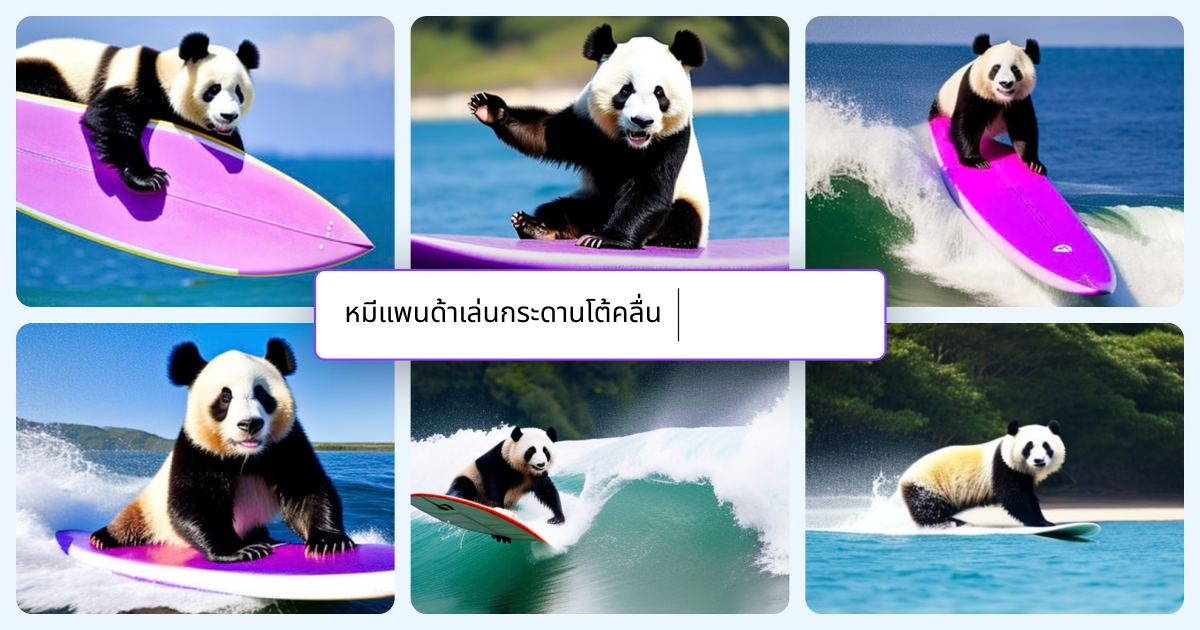
Canva AI Image Generator turns text into images in 10+ styles right inside Canva, with reference photos, Magic Edit, Magic Eraser, Magic Expand and background removal, so you can drop results straight into designs.

  • ai image generator
  • canva
  • canva ai
  • dream lab
  • magic edit
  • text to image
  • graphic design
  • social media design
  • ai photo editor
  • templates
Visit Website

Updated Oct 9, 2026

Pricing Freemium

Rating No reviews yet

Canva preview - AI Image Generator

Standout Features

What makes Canva stand out

  • AI images directly inside Canva designs
  • 10+ styles
  • Magic Edit, Eraser and Expand
  • Free plan available

Key Features

What’s in the toolkit?

  • 01

    Text to image

  • 02

    10+ image styles

  • 03

    Aspect ratio options

  • 04

    Reference photo input

  • 05

    Dream Lab

  • 06

    Magic Edit

  • 07

    Magic Eraser

  • 08

    Magic Expand

  • 09

    Background remover

  • 10

    Photo editor

  • 11

    Export to PNG, JPG and PDF

  • 12

    Text to video and graphics

  • 13

    17 languages

What is Canva?

Dream it up, describe it, and watch it appear

Canva's AI Image Generator is part of Canva's AI tools and turns your descriptions into images you can use instantly in any Canva design.

Features

  • Text to image with aspect ratio choices.
  • 10+ styles such as Photo, Cinematic, 3D Render, Pop Art and Vector.
  • Reference photo input.
  • Magic Edit, Magic Eraser, Magic Expand and background remover.
  • Dream Lab built on Leonardo's Phoenix model.

Design-ready

Results go straight into presentations, social posts and print designs. The free plan includes limited AI uses, while Pro and Business expand allowances. Canva is the most convenient AI image generator for everyday design work.

Pricing
Freemium
Company
Canva
Platform Access
1 feature

Use Cases

Where teams put it to work

  • 01

    Social media graphics

  • 02

    Presentations

  • 03

    Marketing materials

  • 04

    Print designs

Workflow

How to use Canva?

  1. 01

    Open Canva and choose the AI image generator.

  2. 02

    Describe your image and pick a style.

  1. 03

    Generate and choose a result.

  2. 04

    Add it to a design and edit.

Pros & Cons

Is Canva right for you?

Pros

4
  • Seamless with Canva designs
  • Easy for beginners
  • Free plan
  • Web and mobile

Cons

2
  • AI uses are capped per plan
  • Models used are not named

Pricing

Pricing for Canva

Freemium
  • Free – $0: up to 20 standard or premium AI uses.
  • Pro – $144/year: up to 200 premium or 20 ultra uses.
  • Business – $250/year per person: up to 400 premium or 40 ultra uses.
  • Enterprise: contact sales.

Prices in USD. Nonprofits get free Pro-level access.

Who is it for

Who is Canva for?

Small businesses and marketers.Teachers and students.Social media creators.
FAQ

Frequently Asked Questions

Everything you need to know about Canva before you try it.

On paid plans, standard AI tools like Translate and Magic Write don't count toward the allowance.

Other AI tools share a monthly pooled allowance.

Yes, nonprofits get free Pro-level access for up to 50 users.

Canva accepts PayPal and major credit cards; prices exclude tax.

Reviews

Canva Reviews

Real experiences from people who use Canva. Share yours to help others choose the right tool.

0.0/5

No reviews yet

5
0%
4
0%
3
0%
2
0%
1
0%

No reviews yet

Have you used Canva? Be the first to share your experience and help others decide.

Write a review

How would you rate Canva?

0/2000

Your email is never shown publicly. Reviews appear after a quick check by our team.

Explore More Similar Tools

More tools worth checking out from the same category.

Never Miss a New AI Tool

Subscribe to get the latest AI tools, deals, and resources delivered straight to your inbox — no spam, unsubscribe anytime.