This may take few seconds.

0% Completed

AI Text to Video Generator · Freemium
Canva logo - AI Text to Video Generator

Canva

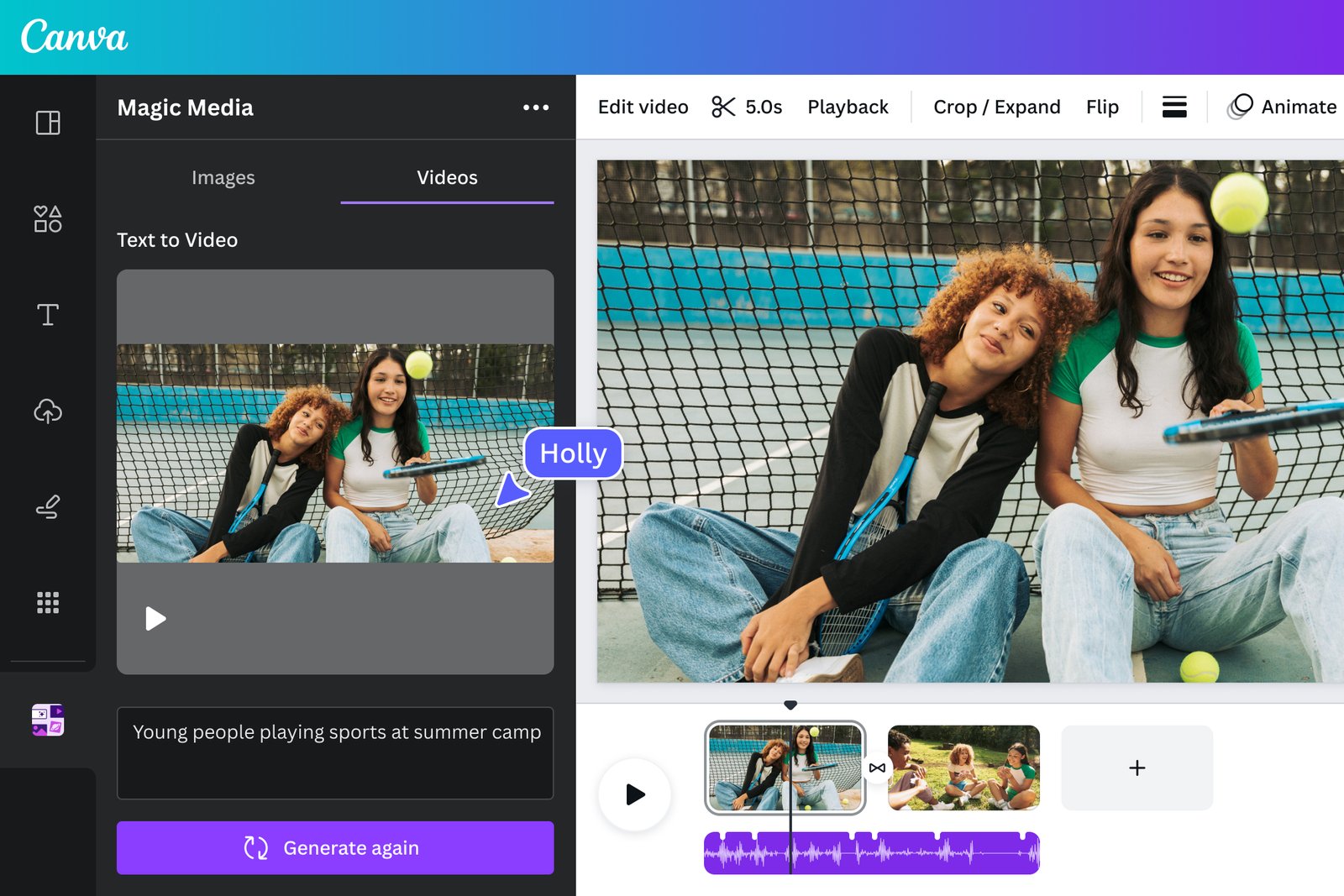
Canva's AI video generator, Create a Video Clip, uses Google's Veo 3 to generate 8-second 16:9 clips with synchronized audio from a text prompt, ready to edit in Canva's design and video editor.

  • text to video
  • canva
  • veo 3
  • ai video generator
  • video editing
  • graphic design
  • social media video
  • ai audio
  • templates
  • canva pro
Visit Website

Updated Oct 8, 2026

Pricing Freemium

Rating No reviews yet

Canva preview - AI Text to Video Generator

Standout Features

What makes Canva stand out

  • Powered by Google's Veo 3
  • Clips with synchronized audio
  • Edit clips directly in Canva designs
  • Included in Canva Pro and above

Key Features

What’s in the toolkit?

  • 01

    Create a Video Clip (text to video)

  • 02

    Google Veo 3 model

  • 03

    16:9 clips up to 8 seconds

  • 04

    Synchronized dialogue, sound and music

  • 05

    Canva video editor

  • 06

    Templates and brand kits

  • 07

    AI avatars

  • 08

    AI dubbing

  • 09

    Reel maker

  • 10

    Web and mobile apps

What is Canva?

Create AI video clips with sound from a text prompt in Canva

Canva, the popular design platform, includes an AI text to video generator called Create a Video Clip, powered by Google's Veo 3.

Clips with sound in one click

  • Text to video: generate a clip from a single prompt.
  • 16:9 clips up to 8 seconds, one video per prompt.
  • Synchronized audio, including dialogue, sound design and music.

Edit in Canva

Drop generated clips straight into Canva designs and videos, add text, brand elements and templates, and combine them with AI avatars, AI dubbing and the reel maker. Available on Canva Pro, Business, Enterprise and Nonprofit plans, it is the most convenient AI text to video generator for teams already designing in Canva.


Pricing
Freemium
Company
Canva
Platform Access
1 feature

Use Cases

Where teams put it to work

  • 01

    Social media videos

  • 02

    Presentations

  • 03

    Marketing and ads

  • 04

    B-roll for designs

  • 05

    Educational content

Workflow

How to use Canva?

  1. 01

    Open Canva with a Pro, Business, Enterprise or Nonprofit plan.

  2. 02

    Open Canva AI and choose Create a Video Clip.

  3. 03

    Type your prompt.

  1. 04

    Generate the clip with sound.

  2. 05

    Add it to a design and edit or download.

Pros & Cons

Is Canva right for you?

Pros

4
  • Veo 3 quality with audio
  • Seamless editing in Canva
  • Huge template library
  • Familiar, easy interface

Cons

3
  • Not available on Canva Free
  • Limited number of clips per month
  • Clips capped at 8 seconds

Pricing

Pricing for Canva

Freemium
  • Free: Canva's free plan does not include AI video clip generation.
  • Pro – $144/year for one person: limited number of video clips per month.
  • Business – $250/year per person.
  • Enterprise: contact sales.

Eligible nonprofits and education users can get premium features free. Check canva.com/pricing for current rates.

Who is it for

Who is Canva for?

Canva users and design teams.Social media marketers.Educators and nonprofits.

Frequently Asked Questions

A 16:9 video up to eight seconds long, with synchronized audio, generated from one prompt at a time.

No. Pro, Business, Enterprise and Nonprofit users can create a limited number of clips per month.

Yes for personal or commercial projects, provided you follow Canva's AI Product Terms and Terms of Use.

Explore More Similar Tools

More tools worth checking out from the same category.

Never Miss a New AI Tool

Subscribe to get the latest AI tools, deals, and resources delivered straight to your inbox — no spam, unsubscribe anytime.